


Configure photo previews, image quality and watermarks
Comfort and security settings
Under My shop → Image protection, you can configure the fullscreen viewer and other photo preview options. The fullscreen viewer tiles show the three modes side by side.
- Open My shop → Image protection (marker 1).
- Choose a Fullscreen viewer card (marker 2). The change is saved immediately.
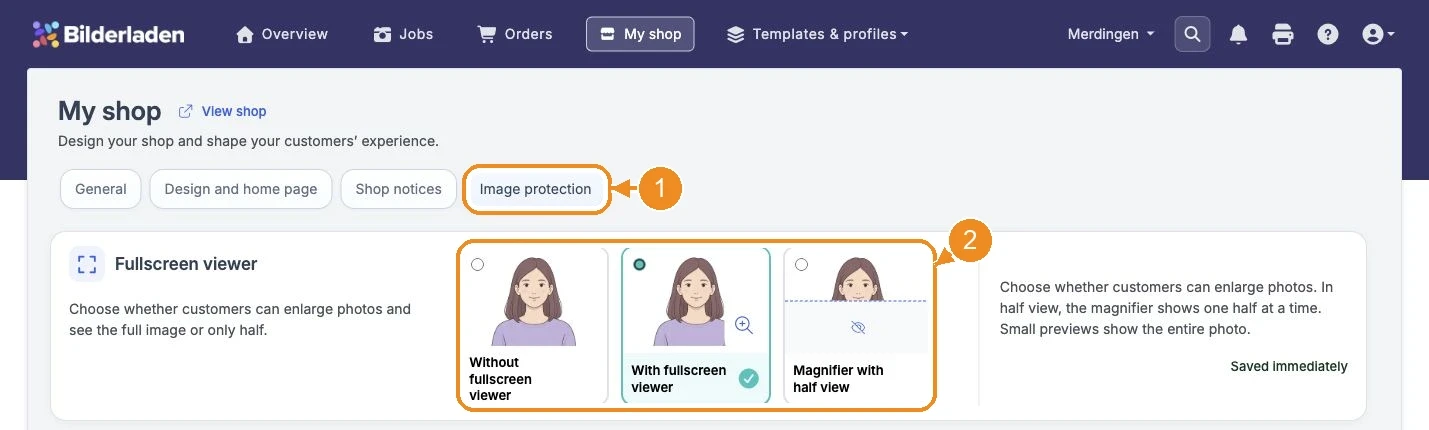
- Fullscreen viewer: Choose Without fullscreen viewer, With fullscreen viewer, or Magnifier with half view. Half view starts with the upper half visible. Use the button in the covered area to switch halves. This also applies to enlarged product views such as photo prints. Small previews in the gallery and product selection still show the entire image.
- Screenshot notice: Shows an image-rights notice when opening the gallery, once per access and browser session. It does not technically prevent screenshots.
- Block right-click and dragging: Makes saving and opening through the image menu harder. Direct image requests and screenshots remain possible.
- Preview size and image quality: Sets the maximum dimension (50 to 700 pixels in steps of 50) and JPEG quality (10 to 100 in steps of 10). Lower values reduce detail or increase compression.
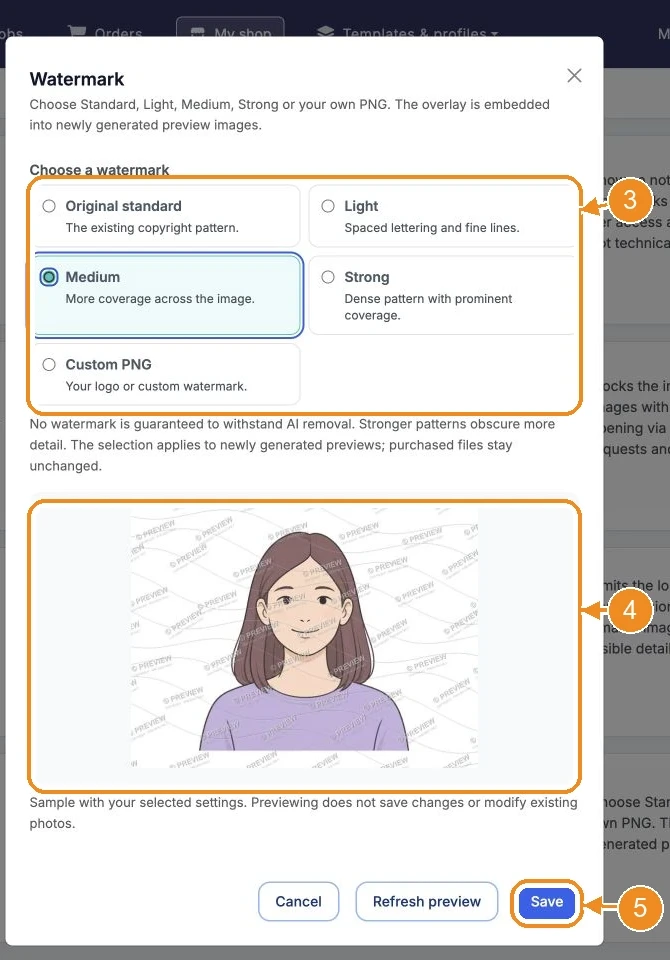
- Watermark: Choose Original standard, Light, Medium, Strong, or your own PNG (maximum 1 MiB and 2048 × 2048 pixels). A transparent background is recommended. The watermark is stretched across the whole image.
For the viewer, screenshot notice and image blocking, choose a preview tile below the description. The half-view tile shows its example with the lower half covered. The selected variant has a highlighted border and check mark. Changes are saved immediately and confirmed with a notification. For preview quality and watermark, choose Edit to open the respective dialog. Viewer, preview quality and watermark have sample images; the screenshot notice has example text. Quality and watermark previews update automatically when the dialog opens and image settings change; you can also choose Refresh preview. A new upload replaces the previous watermark; Original standard switches back.
Save applies changes only to the area opened in the dialog. Cancel or closing the dialog discards the selection. Image blocking applies to all jobs when the shop next loads. Every newly generated preview uses your current watermark and quality settings, including for existing jobs. Existing previews are updated only if you choose to apply a saved watermark change to existing jobs.
The levels differ in pattern density and opacity. Strong patterns obscure more detail, so check the preview before saving. No watermark provides guaranteed protection against AI removal. This selection does not change purchased files.
Choose a watermark
Select Edit in the Watermark area.
- Choose Original standard, Light, Medium, Strong or Custom PNG (marker 3). For a custom PNG, also choose your file.
- Wait for the sample image and check that important details remain visible (marker 4). Previewing alone does not save anything.
- Apply the selection with Save (marker 5). Cancel discards it.
After saving a change to the watermark, another dialog opens. The change applies immediately to new uploads. Choose whether to update existing jobs too:
- Do not apply to existing jobs: Keep existing previews.
- Apply to all … jobs: Update existing previews for all counted, non-archived jobs.
- Apply only to jobs that are not on sale (…): Update previews for jobs in preparation and paused jobs. Jobs on sale remain excluded.
Archived jobs are always excluded from both options, including jobs archived after an update starts. The counts include only eligible, non-archived jobs. When you start an update, the dialog closes towards Notifications at the top. The notification shows progress and, after the first photos have been processed, the estimated time remaining. You can keep working. The final notification also reports failed or skipped photos. Original and purchased files remain unchanged. If you change the watermark or preview quality again during processing, the previous run stops; apply the new settings again if needed.